


SAP test automation can feel overwhelming at first - especially if you’re new to tools like Tricentis Tosca Cloud. The good news is that once you understand how Tosca Cloud structures modules, test cases, scanning, and execution, creating your first SAP automated test becomes much simpler than expected.
In this beginner-friendly tutorial, you’ll learn how to build your first SAP automated test in Tosca Cloud using one of the safest and most widely used SAP transactions: VA03 - Display Sales Order.
This guide is ideal for:
-
SAP testers new to automation
-
Tosca Cloud beginners
-
Manual testers transitioning to SAP test automation
SAP Automation Scenario: What We Will Test
In this walkthrough, we will automate the following SAP GUI process:
-
✅ Log in to SAP GUI
-
✅ Select an SAP connection and authenticate
-
✅ Open transaction VA03
-
✅ Enter an existing Sales Order
-
✅ Display the Sales Order
-
✅ Verify that the correct Sales Order is displayed
This scenario represents a core SAP automation pattern that can be reused across many real-world SAP business processes.
This video is a detailed walkthrough that follows the written guide below.
For best results, read the article first to understand the flow, then use the video to see each step executed in SAP GUI.
1. Understanding the Tricentis Tosca Cloud Workflow
Before building your first test, it’s important to understand the four key areas of Tosca Cloud:
Modules
Modules contain scanned technical information from SAP GUI, web applications, or desktop applications. These include buttons, input fields, labels, and other UI controls.
Test Cases
Test Cases are where modules are combined with actions and data to form executable SAP test scenarios.
Test Data (Optional but recommended)
Reusable data tables used to store values such as sales order numbers or customer names.
Executions
The execution area is where tests are run using agents and where results are analyzed.
Once you understand these four components, you can automate almost any SAP GUI process using Tosca Cloud.
2. Preparing SAP for Scanning in Tosca Cloud
SAP applications consist of multiple UI controls that Tosca interacts with during test execution.
To enable automation, you must first scan the SAP screens. Scanning captures the technical properties of SAP controls and stores them as Modules in Tosca Cloud. These modules form the foundation of all SAP automated tests.
3. Scanning SAP Screens for Transaction VA03
For this example, we will scan two SAP screens:
-
VA03 | Display Sales Documents
-
Display Standard Order XXX: Overview
We will also use Standard Modules, which are prebuilt Tosca modules provided out-of-the-box for common SAP actions such as login and toolbar navigation.
3.1 Scanning the VA03 Start Screen in SAP GUI
- Open SAP GUI
- Log in with valid credentials
- Enter transaction VA03 and press Enter
In Tosca Cloud:
- Navigate to Modules
- Click Scan
- Highlight the SAP GUI window
- Select XScan
- Scan only the required controls:
- From Display Sales Documents:
-
-
-
Sales Order input field
-
Search field (if applicable)
-
-
-
From Display Standard Order:
-
Standard order details used for verification
-
Save the modules with the following names:
-
VA03 | Display Sales Documents -
VA03 | Display Standard Order XXX: Overview
💡 Best Practice: Keep SAP modules small and focused. Only scan controls that are required for the test.
4. Creating Your First SAP Test Case in Tosca Cloud
To build the test case:
- Go to TestCases
- Create a new TestCase
- Drag the following Standard Modules into the test: SAP Logon, SAP Login, SAP Toolbar
- Drag in the two custom modules you scanned:
-
-
VA03 | Display Sales Documents
-
VA03 | Display Standard Order XXX: Overview
-
Once added, populate each test step with the required actions and values.
5. Managing SAP Test Data
At this stage, you can either:
-
Enter fixed values directly into test steps (not recommended)
-
Or use Test Data to store reusable values such as:
-
Sales Order number
-
Expected customer name
-
Using test data improves maintainability, scalability, and reusability of your SAP automated tests.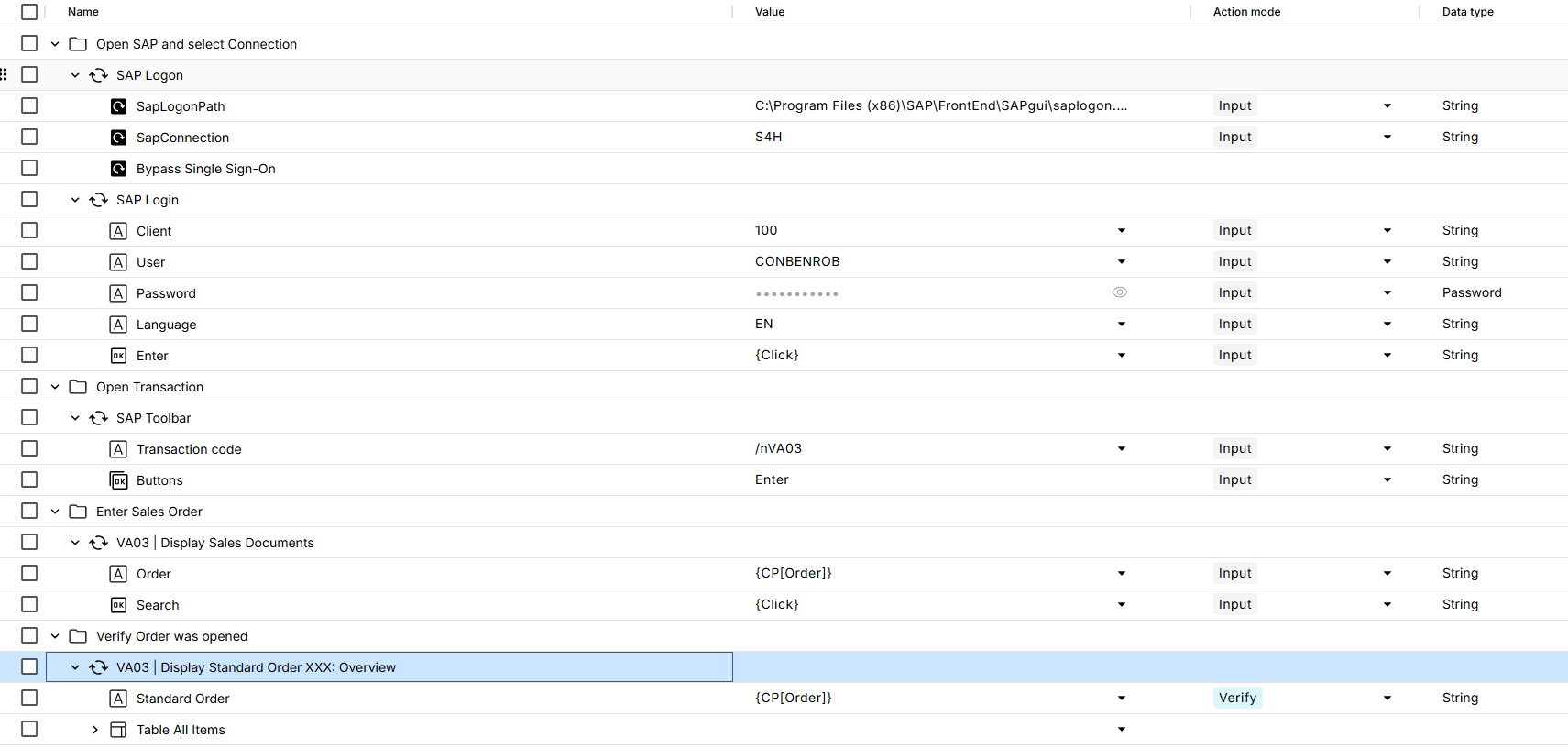
6. Running the SAP Test Using a Tosca Cloud Agent
For demonstration purposes, we’ll run the test using a Scratchbook execution.
- Highlight all test steps in the TestCase
- Click Run in the top-right corner
- A yellow rectangle appears around the SAP GUI screen, indicating test execution
- When the rectangle disappears, execution is complete
- Navigate to Run → Test Runs to review the result
7. Analyzing SAP Test Execution Results
After execution, Tosca Cloud provides detailed insights, including:
-
Step-by-step execution logs
-
Screenshots (if enabled)
-
Expected vs. actual results
-
Verification outcomes
-
Execution agent details
-
Total execution time
If a test fails, Tosca clearly identifies the exact control or verification that caused the failure.
8. Making Your SAP Test Reusable and Scalable
8.1 Parameterize Test Data
To make your SAP automated test reusable, replace hardcoded values with parameters:
Order = {CP[Order]}
ExpectedCustomer = {CP[CustomerName]}
This allows the same test case to run with different datasets without modification—an essential best practice in SAP test automation.
9. Final Thoughts: Your First SAP Automation with Tosca Cloud
You’ve successfully created your first SAP automated test in Tricentis Tosca Cloud:
-
✅ Scanned SAP GUI screens
-
✅ Built clean, reusable modules
-
✅ Created an end-to-end SAP test case
-
✅ Validated business data
-
✅ Reviewed detailed execution results
This VA03 example provides a strong foundation for automating more complex SAP processes such as order creation, billing, or logistics workflows.